Print custom receipts
After completing Setup, you can print custom receipts through the Teya SDK. There are two ways to do this:
- Custom receipt image - Provide a full-receipt image that the Teya card machine prints as-is.
- Custom receipt template - Provide a JSON template that the Teya card machine renders and prints.
Custom receipt template
Using our SDK, you can print fully customizable receipts by defining your own template. This lets you tailor the layout and content to match your specific business needs.
Create a JSON structure that defines the receipt layout and content. For the full schema, see the API reference.
{
  "jsonrpc": "2.0",
  "method": "printCustomTemplate",
  "params": {
    "rows": [
      { "rowType": "item", "item": { "elementType": "text", "text": "MMF TEST A920", "bold": true, "align": "CENTER" } },
      { "rowType": "item", "item": { "elementType": "text", "text": "Ruzova Dolina 6, Bratislava 85104", "align": "CENTER" } },
      { "rowType": "spacer" },
      {
        "rowType": "items",
        "items": [
          { "elementType": "image", "imageFullPath": "C:/Users/username/path/to/icons/teya_logo.png" },
          { "elementType": "image", "imageFullPath": "C:/Users/username/path/to/icons/success_image.png", "align": "RIGHT" },
          { "elementType": "text", "text": " Approved", "bold": true, "align": "RIGHT" }
        ]
      },
      {
        "rowType": "items",
        "items": [
          { "elementType": "text", "text": "CUSTOMER RECEIPT", "bold": true },
          { "elementType": "text", "text": "21/02/22 · 10:25", "bold": true, "align": "RIGHT" }
        ]
      },
      { "rowType": "spacer" },
      { "rowType": "divider" },
      {
        "rowType": "items",
        "items": [
          { "elementType": "text", "text": "1x COFFEE", "bold": true },
          { "elementType": "text", "text": "£ 2.00", "bold": true, "align": "RIGHT" }
        ]
      },
      {
        "rowType": "items",
        "items": [
          { "elementType": "text", "text": "1x WATER", "bold": true },
          { "elementType": "text", "text": "£ 1.00", "bold": true, "align": "RIGHT" }
        ]
      },
      { "rowType": "spacer" },
      {
        "rowType": "items",
        "items": [
          { "elementType": "text", "text": "AMOUNT", "bold": true },
          { "elementType": "text", "text": "£ 3.00", "bold": true, "align": "RIGHT" }
        ]
      },
      {
        "rowType": "items",
        "items": [
          { "elementType": "text", "text": "TIPS", "bold": true },
          { "elementType": "text", "text": "£ 2.00", "bold": true, "align": "RIGHT" }
        ]
      },
      { "rowType": "divider" },
      {
        "rowType": "items",
        "items": [
          { "elementType": "text", "text": "TOTAL", "bold": true },
          { "elementType": "text", "text": "£ 5.00", "bold": true, "align": "RIGHT" }
        ]
      },
      { "rowType": "divider" },
      { "rowType": "spacer" },
      { "rowType": "item", "item": { "elementType": "text", "text": "Mastercard Contactless ****6787", "bold": true } },
      { "rowType": "item", "item": { "elementType": "text", "text": "AID: A00000000041010", "bold": true } },
      { "rowType": "item", "item": { "elementType": "text", "text": "Approval code: SsF4e", "bold": true } },
      {
        "rowType": "items",
        "items": [
          { "elementType": "text", "text": "MID: ****5678", "bold": true },
          { "elementType": "text", "text": "TID: ****Y002", "bold": true, "align": "RIGHT" }
        ]
      },
      { "rowType": "item", "item": { "elementType": "text", "text": "Reference: 12345678901234567890", "bold": true } },
      { "rowType": "spacer" },
      { "rowType": "spacer" },
      { "rowType": "item", "item": { "elementType": "text", "text": "Thank you", "bold": true, "align": "CENTER" } }
    ]
  },
  "id": "c2f763b4-5e5f-4479-b38d-51419e2a0cdd"
}
The SDK app responds with a JSON object in the result field of the JSON-RPC message:
{
    "type": "printCustom*->onPrintingStateChanged",
    "receiptId": "019a3af2-2604-71c3-885d-828eb3fcef4d",
    "status": "PRINTED"
}
Result: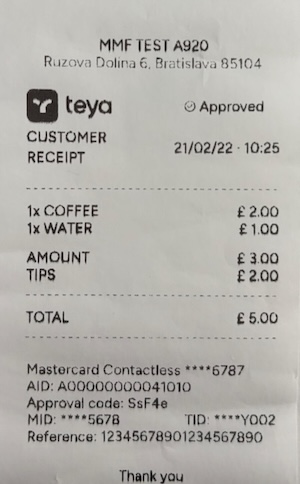
As shown in the example above, you can combine different row types and elements to create a receipt that fits your requirements. Below are the details of the available row types and element types.
Row Types
For the rows, you can use various ReceiptRow types such as Item, Items, Spacer, Divider, and Table.
Item
A single row containing only one element.
{
  "rowType": "item",
  "item": {
    "elementType": "text",
    "text": "Sample Text",
    "bold": true,
    "align": "CENTER"
  }
}
Items
A row that can contain multiple elements side by side, allowing for more complex layouts within a single row.
All items will be evenly distributed across the row, meaning each item will have equal width. Custom weights for items inside the Items row aren’t supported yet. If you need to use weights, consider using a Table instead.
{
  "rowType": "items",
  "items": [
    { "elementType": "image", "imageFullPath": "C:/Users/username/path/to/icons/teya_logo.png" },
    { "elementType": "image", "imageFullPath": "C:/Users/username/path/to/icons/success_image.png", "align": "RIGHT" },
    { "elementType": "text", "text": " Approved", "bold": true, "align": "RIGHT" }
  ]
}
Spacer
An empty row that adds vertical space between other rows, improving readability and visual separation.
{ "rowType": "spacer" }
Divider
A dashed line that separates sections of the receipt, helping to organize the content.
{ "rowType": "divider" }
Table
A structured section with a header and multiple data rows, ideal for listing items with columns (e.g., product name and price).
If you set a column’s weight to 0f or less, its width will automatically adjust to fit its content.
{
  "rowType": "table",
  "headerCells": [
    {
      "element": {
        "text": "ITEM",
        "bold": true
      },
      "weight": 1.0
    },
    {
      "element": {
        "text": "PRICE",
        "bold": true,
        "align": "RIGHT"
      },
      "weight": 1.0
    }
  ],
  "rows": [
    {
      "cells": [
        {
          "text": "1x SANDWICH",
          "bold": true
        },
        {
          "text": "£ 5.00",
          "bold": true,
          "align": "RIGHT"
        }
      ]
    },
    {
      "cells": [
        {
          "text": "1x WATER",
          "bold": true
        },
        {
          "text": "£ 5.00",
          "bold": true,
          "align": "RIGHT"
        }
      ]
    }
  ]
}
Table limitations:
- You can put only
Textelements inside table cells. - The number of header cells must match the number of cells in each row.
- The number of columns in a table cannot exceed 10.
Element types
Within each row, you can use different RowElement types to define the content:
Text
Displays a line of text on the receipt. You can set alignment (left, center, right) and make it bold. Used for headings, messages, or item names.
{
  "elementType": "text",
  "text": "Sample Text",
  "bold": true,
  "align": "CENTER"
}
Image
Prints an image (e.g., logo or icon) on the receipt. The image should be in PNG or JPEG format.
{
  "elementType": "image",
  "imageFullPath": "C:/Users/username/path/to/icons/success_image.png",
  "align": "RIGHT"
}
QrCode
Renders a QR code with a specified URL or string. You can set its alignment. Useful for adding links, payment info, or promotions.
{
  "elementType": "qrCode",
  "url": "https://teya.com",
  "align": "CENTER"
}
Limitations
When building custom templates, keep the following limitations in mind:
- A template can have a maximum of 150 rows.
- Some row and element types have specific limitations, which are described in their individual sections.
- Although the template payload is already JSON, before being sent to the printer, it is converted to another JSON where images are encoded as Base64 strings. This conversion increases the overall size, so the final JSON (including images) must not exceed 250 KB.
Limits that can be detected immediately return a JSON-RPC error with code -3 (ILLEGAL_ARGUMENT_EXCEPTION) and the reason in message, for example Receipt template exceeds 150 rows. Limits detected by the backend end the print with status FAILED, with the reason in printFailure and errorMessage.
Notes
- Alignment options include
LEFT(default),CENTER, andRIGHT(confirm in the API reference). The item is aligned within its container.- File paths in
imageFullPathmust be valid and accessible on the device.
Custom receipt image
If you followed Connecting to the SDK, add a method in C# similar to the following:
public async Task<JsonElement> PrintCustomImage(string receiptFullPath)
{
    var imageReceiptParams = new
    {
        imageFullPath = receiptFullPath
    };

    return await SendRequestAsync("printCustomImage", imageReceiptParams);
}
The SDK app responds with a JSON object in the result field of the JSON-RPC message:
{
    "type": "printCustom*->onPrintingStateChanged",
    "receiptId": "019a3ae2-c7aa-745f-8c80-d2aeb0bb6588",
    "status": "PRINTED"
}
Limitations
When printing images, keep the following limitations in mind:
- The maximum height for the image is 10000 px.
- The recommended width for images is 384 px. If you pass an image wider than this, it will be scaled down to fit the printer width.
- Total size of the image must not exceed 200 KB.
Limits that can be detected immediately return a JSON-RPC error with code -3 (ILLEGAL_ARGUMENT_EXCEPTION) and the reason in message. Limits detected by the backend end the print with status FAILED, with the reason in printFailure and errorMessage, for example Image size exceeds limit.
Notes
imageFullPathmust point to an image file accessible to the SDK app on the device.- The
statusvalue indicates the print outcome (for example,PRINTED).
Printing Statuses
As mentioned earlier, when you print a custom receipt (either image or template), you receive status updates about the printing process e.g.:
{
    "type": "printCustom*->onPrintingStateChanged",
    "receiptId": "019a3ae2-c7aa-745f-8c80-d2aeb0bb6588",
    "status": "PRINTED"
}
You can track the following printing statuses:
| Status | Final? | Description |
|---|---|---|
| PENDING | No | Initial temporary state before connecting to the printer. |
| CONNECTING_TO_PRINTER | No | The system is connecting to the printer to initiate the printing action. |
| PRINTING | No | The card machine is actively printing. |
| PRINTED | Yes | The printing action completed successfully. |
| FAILED | Yes | The printing action failed. |
If status is PRINTED, the print was successful.
Print Failures
If status is FAILED, check the printFailure property for the specific error reason:
| Enum Value | Description |
|---|---|
| NETWORK_ERROR | Connection error occurred. |
| OUT_OF_PAPER | The card machine ran out of paper during the printing process. |
| BUSY | The printer is currently busy. |
| OVERHEATED | The printer has overheated. |
| COVER_OPEN | The printer cover is open. |
| LOW_BATTERY | The card machine battery is too low to complete the print. |
| OTHER | An unknown issue occurred. |
Note: For more exact error handling, refer to the
errorMessageproperty, which may contain additional information about the failure e.g "Image size exceeds limit".